You want to save an Instagram Reel or a photo, you paste a link, and nothing useful comes back. Very often the link is the problem. Instagram makes it easy to copy the address of a profile or a feed when you meant to copy one post. Those links do not point to anything a tool can save.
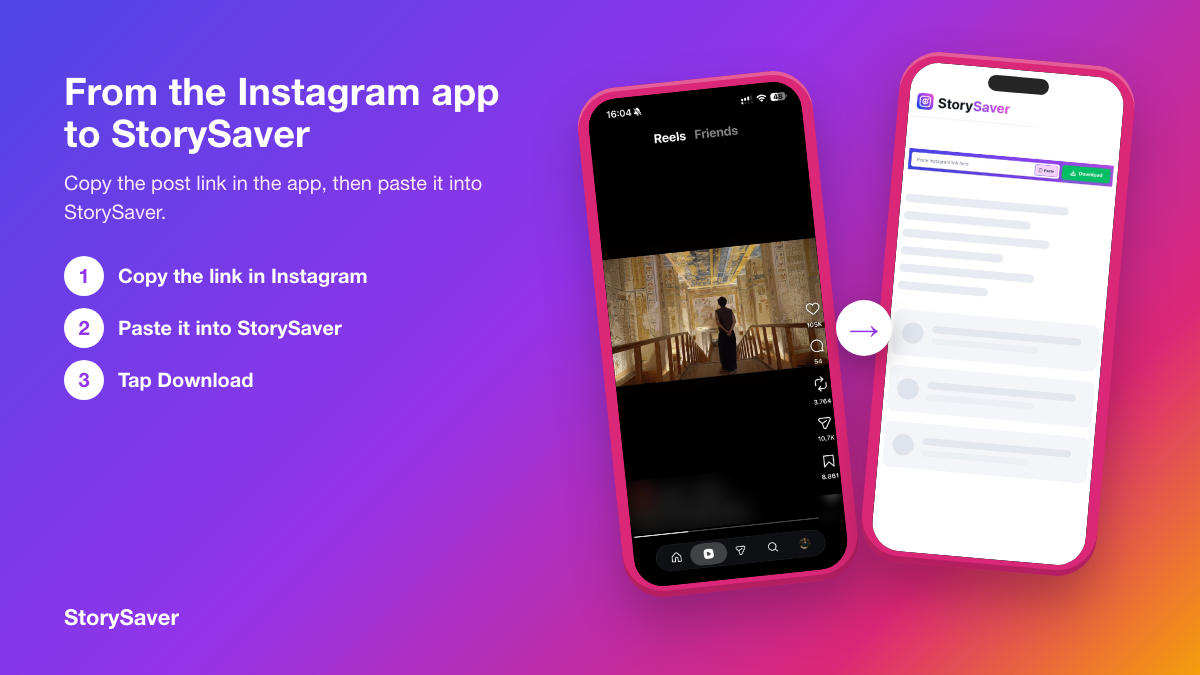
This guide shows how to copy the right Instagram link for a Reel or a photo post, how to tell the formats apart, and what to avoid. Then you can paste it into StorySaver with confidence.
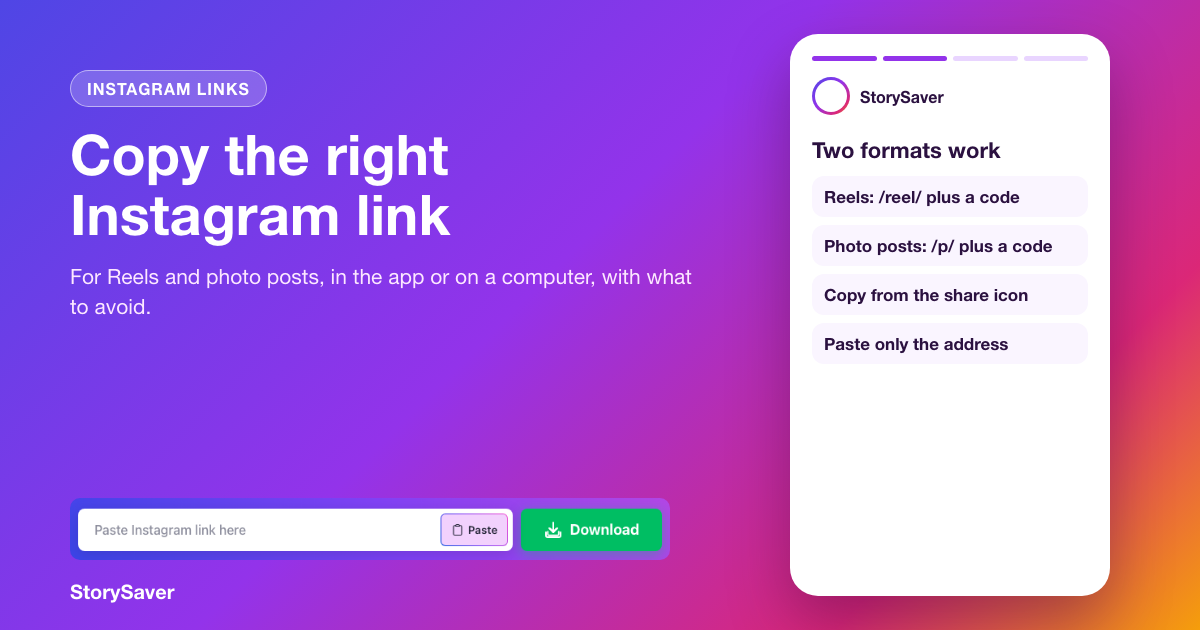
Two link formats that work
StorySaver works from the link of one public post. Two formats have been tested:
- Reels: instagram.com/reel/ followed by a short code. Paste it into the Instagram Reels downloader.
- Photo posts: instagram.com/p/ followed by a short code. Paste it into the Instagram photo downloader.
The code after /reel/ or /p/ identifies one post. That is what makes the link usable.
How to copy an Instagram Reel link in the app
- Open the Reel so it plays full screen.
- Tap the share icon, the paper plane.
- Choose Copy link.
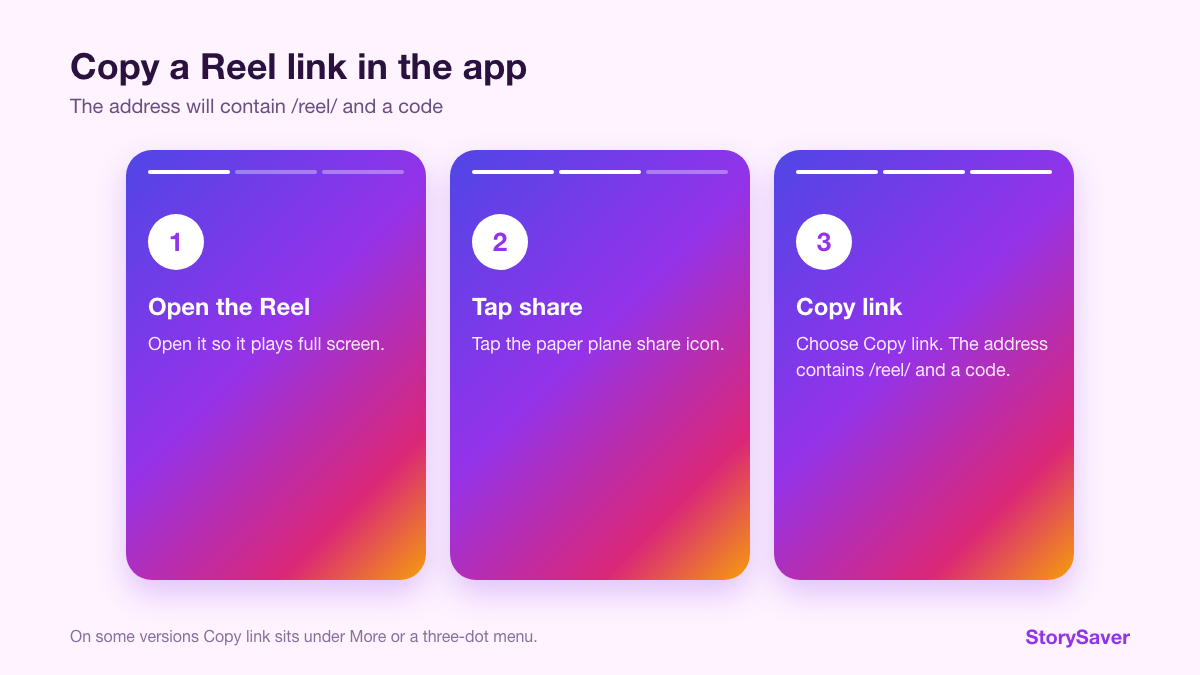
The copied address contains /reel/ and a code. On some app versions the option sits under More or a three-dot menu instead; the label stays Copy link.
How to copy a photo post link in the app
- Open the post so it fills the screen.
- Tap the share icon or the three dots at the top of the post.
- Choose Copy link.
This link contains /p/ and a code. For a single photo, StorySaver returns the image as a JPEG at the size it was posted; in our test that was a 1080 x 1350 file. Posts with several photos have not been tested, so check that every image you need came through.
How to copy the link on a computer
On instagram.com in a desktop browser, click the post or Reel so it opens on its own, then copy the address from the browser bar. You can also use the share icon and Copy link. If the address still shows only a username, you are on the profile, not the post.
Links that will not work
- Profile links, such as instagram.com/username. They point to an account, not a post.
- Feed or Explore links, copied while scrolling.
- Links from private accounts. The link copies, but the content is not public, so it cannot be saved.
- Deleted posts. The address remains in chats, but the post is gone.
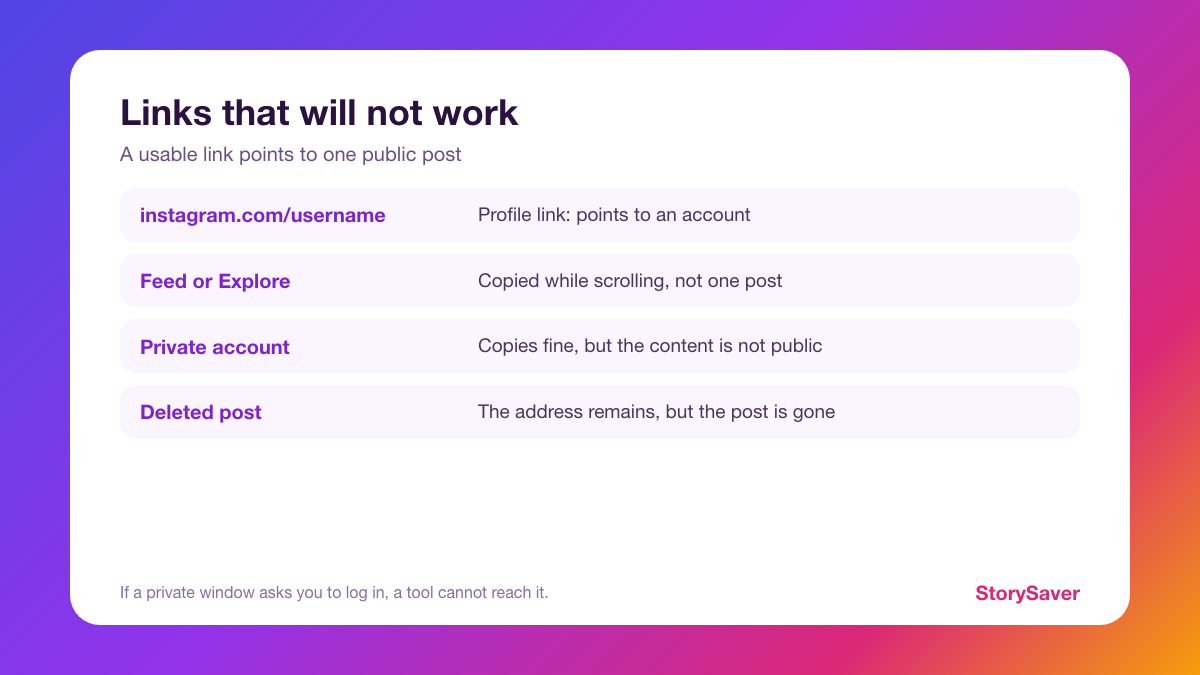
A quick test: open the link in a private browser window where you are not logged in. If Instagram shows the post, the link is public. If it asks you to log in, a tool will not reach it either.
Tidy the link before pasting
Share sheets sometimes add text around the address, and links copied from messages can break across lines. Paste only the address, in one piece. Extra tracking parts after a question mark are usually harmless, but if a paste fails, copy the link again straight from the share icon.
After you paste
For a public Reel, StorySaver shows a preview and a Download MP4 (HD) button after a few seconds. In our test the file was an MP4 of 720 x 1280. The download address points to Instagram's own servers and expires after a while, so save the file right away. If the link stopped working, paste the Reel link again. If a Reel will not download at all, see why an Instagram Reel link won't download.
Quick recap
- Reels: instagram.com/reel/ plus a code.
- Photo posts: instagram.com/p/ plus a code.
- Profile and feed links do not work.
- Private and deleted posts cannot be saved.
Got the right link? Paste it into the StorySaver home page. No sign-up needed.
Please save only content you have the right to keep, and ask the creator before reposting anything.