How to Save Instagram Highlights in Full HD to Phone and PC
Instagram Stories naturally vanish after 24 hours. To preserve their most important content, creators pin curated stories to their profile headers as Highlights. These story collections often contain valuable product showcases, fitness routines, recipe tutorials, and travel memories.
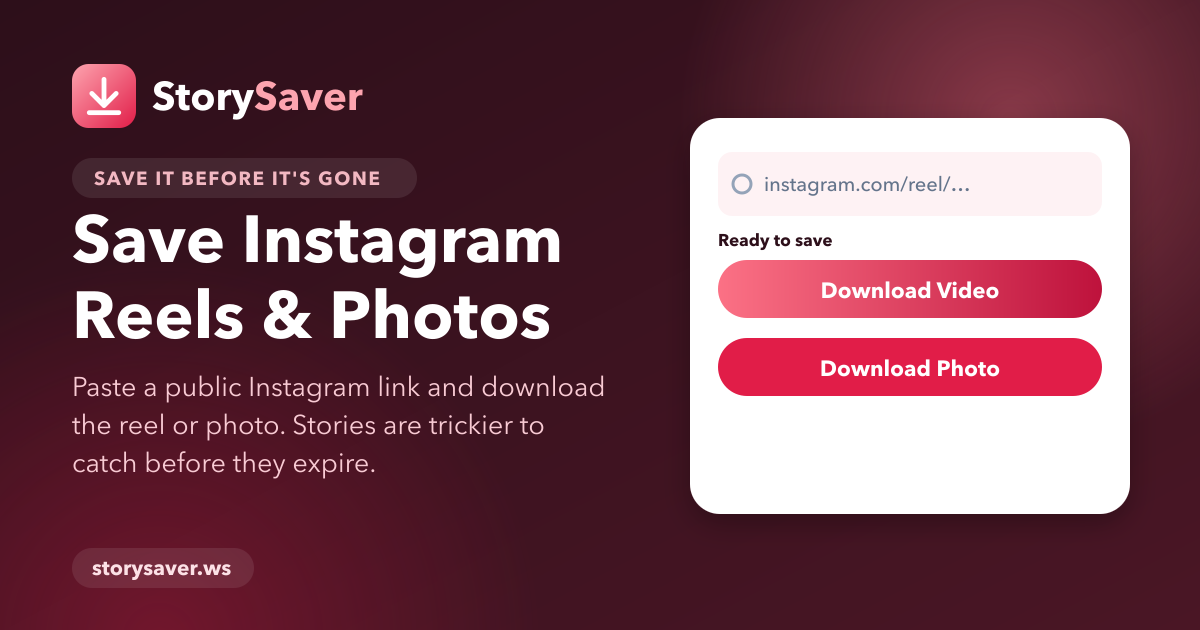
If you want to archive these permanent collections for offline reference, you need a dependable downloader. Using StorySaver makes it straightforward to download Instagram story highlights in full 1080p resolution.
What Are Instagram Highlights and How Do They Work?
Highlights serve as permanent albums pinned directly below a user's biography. Unlike standard stories that disappear daily, Highlights remain visible indefinitely until the creator deletes them.
Creators often organize them into distinct categories with custom cover icons. Because these clips contain significant informational value, users frequently look for ways to store them locally on smartphones or desktop computers.
Why Download Instagram Highlights to Local Storage?
Saving profile highlights locally provides multiple practical benefits:
- Permanent offline access: Watch tutorials and fitness guides without relying on mobile data.
- Safe content archiving: Preserve reference material even if the creator removes their account.
- Original video fidelity: Download video files in crisp 1080p with complete stereo sound.
Step-by-Step Instructions to Download Highlights
Archiving an entire highlight collection requires only a direct web link.
Step 1: Copy the Profile or Highlight Link
Navigate to the public profile on Instagram. Tap on the specific Highlight album you want to save. Tap the three dots icon or the share arrow, then select Copy Link.
Step 2: Input the URL into StorySaver
Open your browser and navigate to StorySaver. Paste the copied profile or highlight link into the search box and press Download.
Step 3: Select and Save Individual Story Clips
The platform will display all individual video clips and photos contained within that Highlight collection. Click the Download button beneath each clip to save the files to your storage.
Best Practices for Organizing Downloaded Highlights
Once your video files are saved, organize them into dedicated folders based on creator name or topic. This makes future offline viewing convenient and keeps your media storage tidy.